



Using a professional email address like name@company.com helps build credibility and keeps your business communication organized. In this guide, we’ll walk through how to connect your Stackmail email account to Microsoft Outlook 365 using IMAP settings.

Before You Begin
Make sure you have the following details ready:
- Your email address: name@company.com
- Your email password: ********
- Incoming mail server (IMAP): imap.stackmail.com
- Outgoing mail server (SMTP): smtp.stackmail.com
Why Use IMAP?
IMAP keeps your emails synchronized across all devices. This means if you read, delete, or organize emails on your phone, the same changes will appear in Outlook on your computer.
Step-by-Step Setup Instructions
Step 1: Open Outlook
Launch Microsoft Outlook 365 on your computer.
Step 2: Add a New Account
- Click File in the top-left corner.
- Select Settings.
- Select Accounts > Add Account.
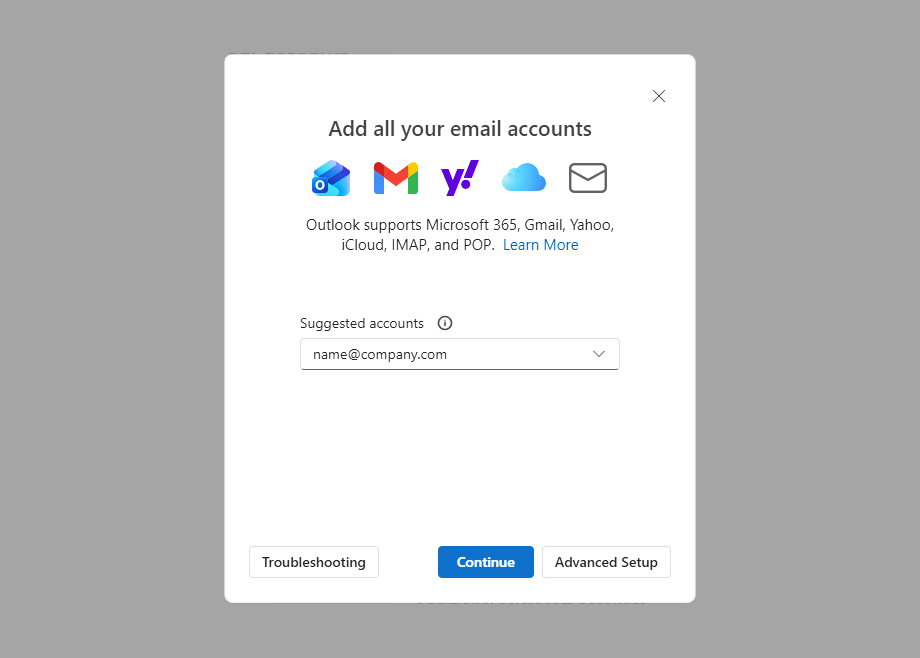
Step 3: Enter Your Email Address
Type your full business email address: name@company.com
Then click Advanced options (Select Provider) and choose IMAP.
Step 4: Configure Incoming Mail Settings
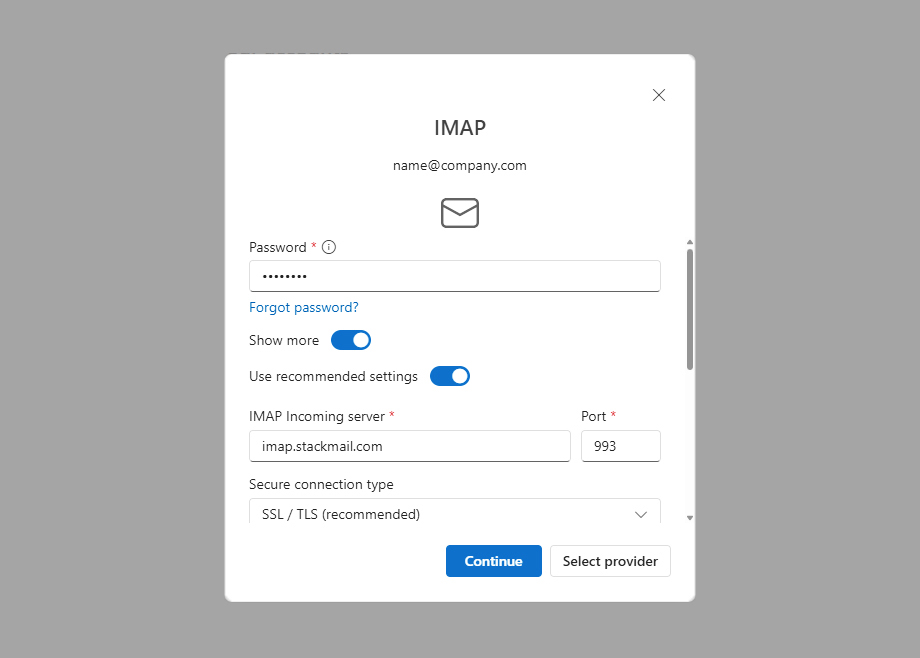
Step 5: Configure Outgoing Mail Settings
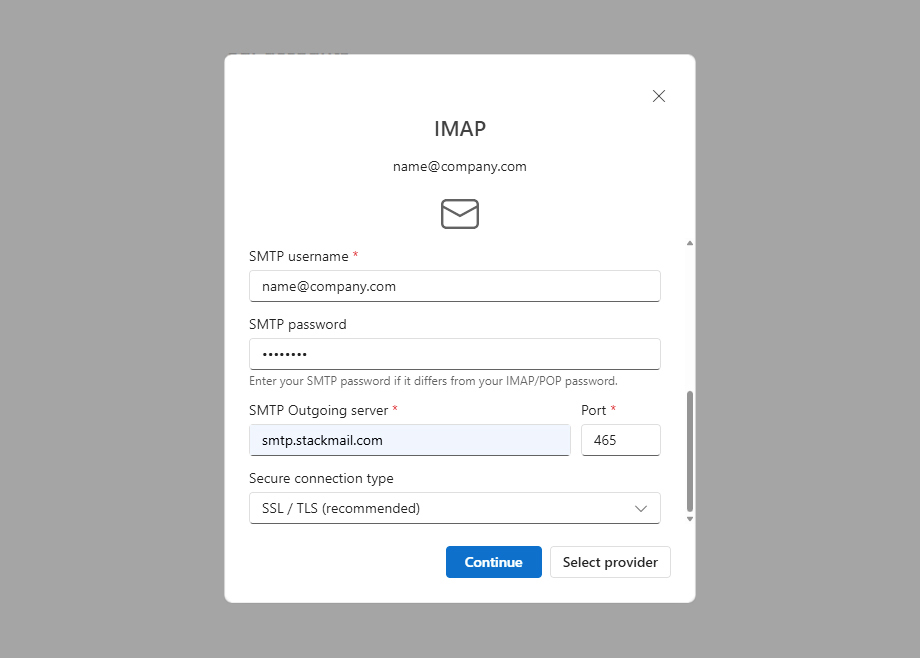
Step 6: Finish Setup
Once you have entered all the settings for the Incoming and Outgoing servers, click Continue.
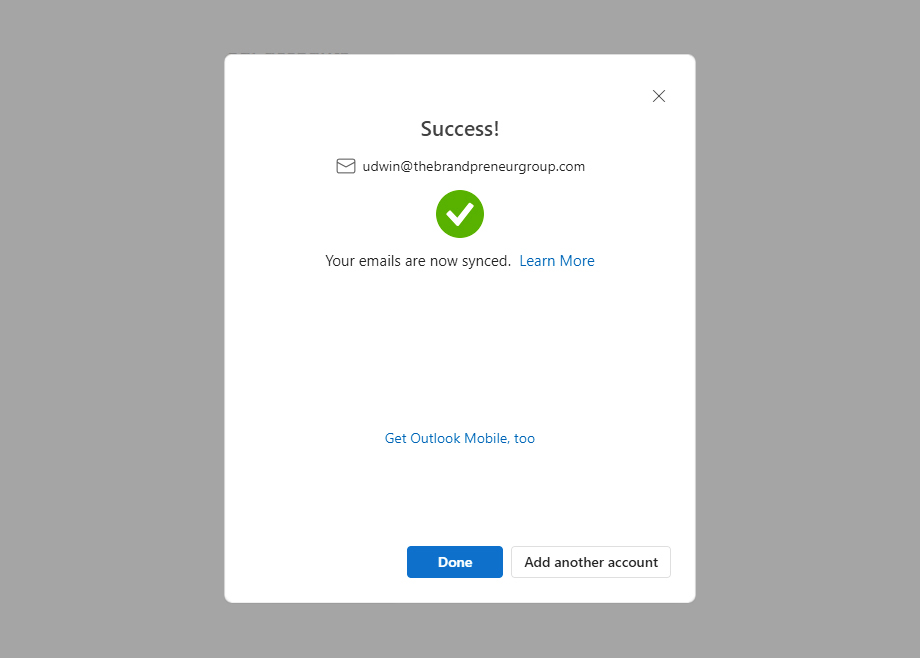
Outlook verifies the settings successfully. Click Done.
Troubleshooting Tips
If your account doesn’t connect immediately:
- Double-check your password.
- Ensure ports and encryption methods are correct.
- Confirm your internet connection is active.
Try removing and re-adding the account.